It’s almost right. Which is the most frustrating kind of wrong.
The structure is good. The points are solid. But the opening is flat, the third paragraph rambles, the tone drifts corporate around paragraph four, and the conclusion reads like it gave up.
You could re-prompt. Explain what’s wrong. Hope the next version is better. It probably won’t be — it’ll just be differently 80%. The last 20% is always the hardest.
The 80% problem is the silent killer of AI-assisted content. The output is close enough to be useful but not close enough to be published. And the gap between 80% and 100% takes more effort than getting to 80% in the first place.
Most teams solve this by editing manually. Which defeats the purpose. Or by re-prompting from scratch. Which resets the parts that were actually good.
What you need is a way to say “this, but better” without losing what already works.
The Hack: One Click. Better.
The Improve button does exactly what the name says. One click and the AI refines its own output — tighter copy, better flow, sharper structure. It doesn’t start over. It polishes what’s there.
Think of it as the editorial pass you don’t have time for. Click once. If it’s still not there, click again. Each pass gets sharper. The ideas stay. The execution improves.
Generate Your First Draft
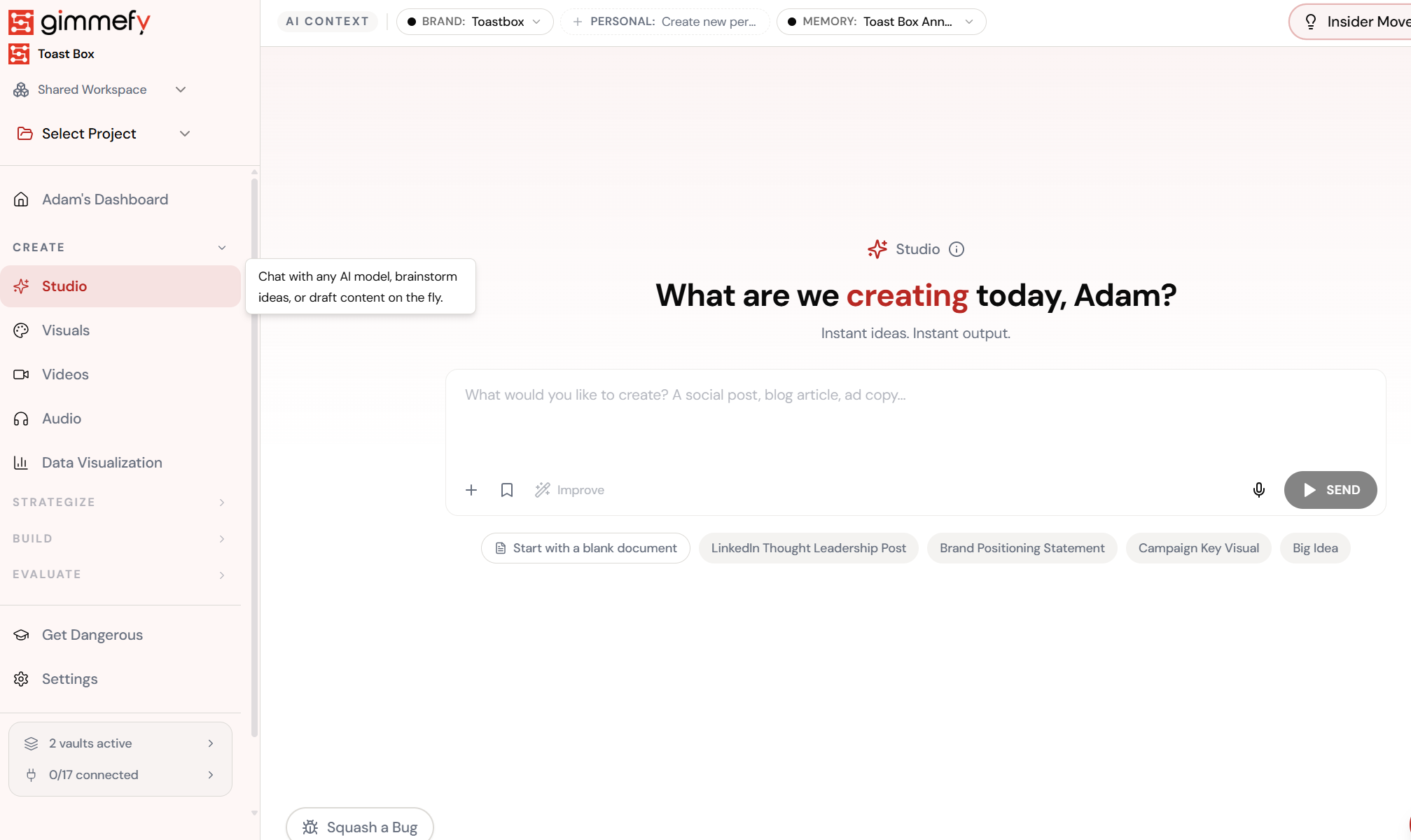
Write anything in Studio — email, blog post, social caption, campaign copy.
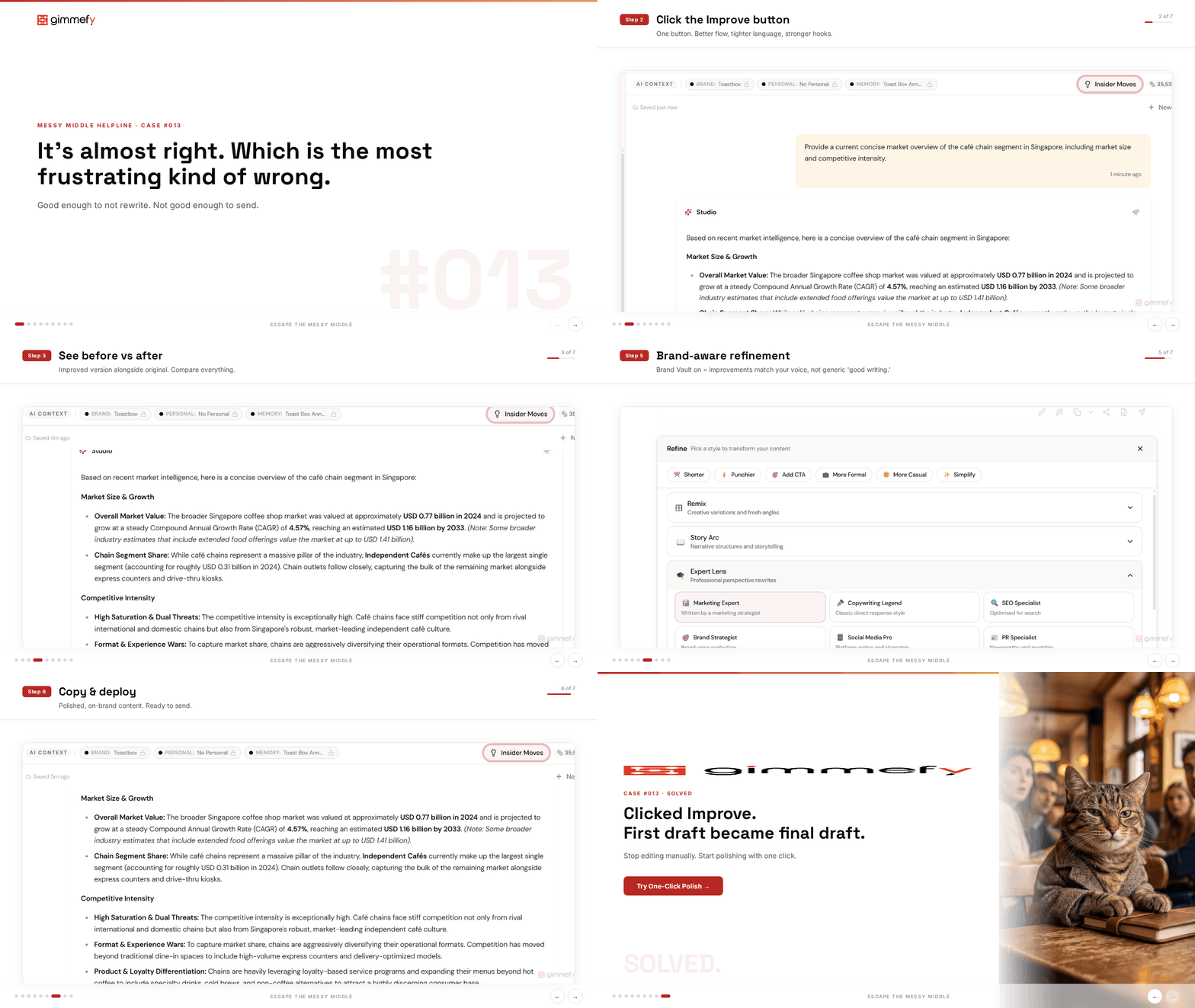
The 7-Step Walkthrough
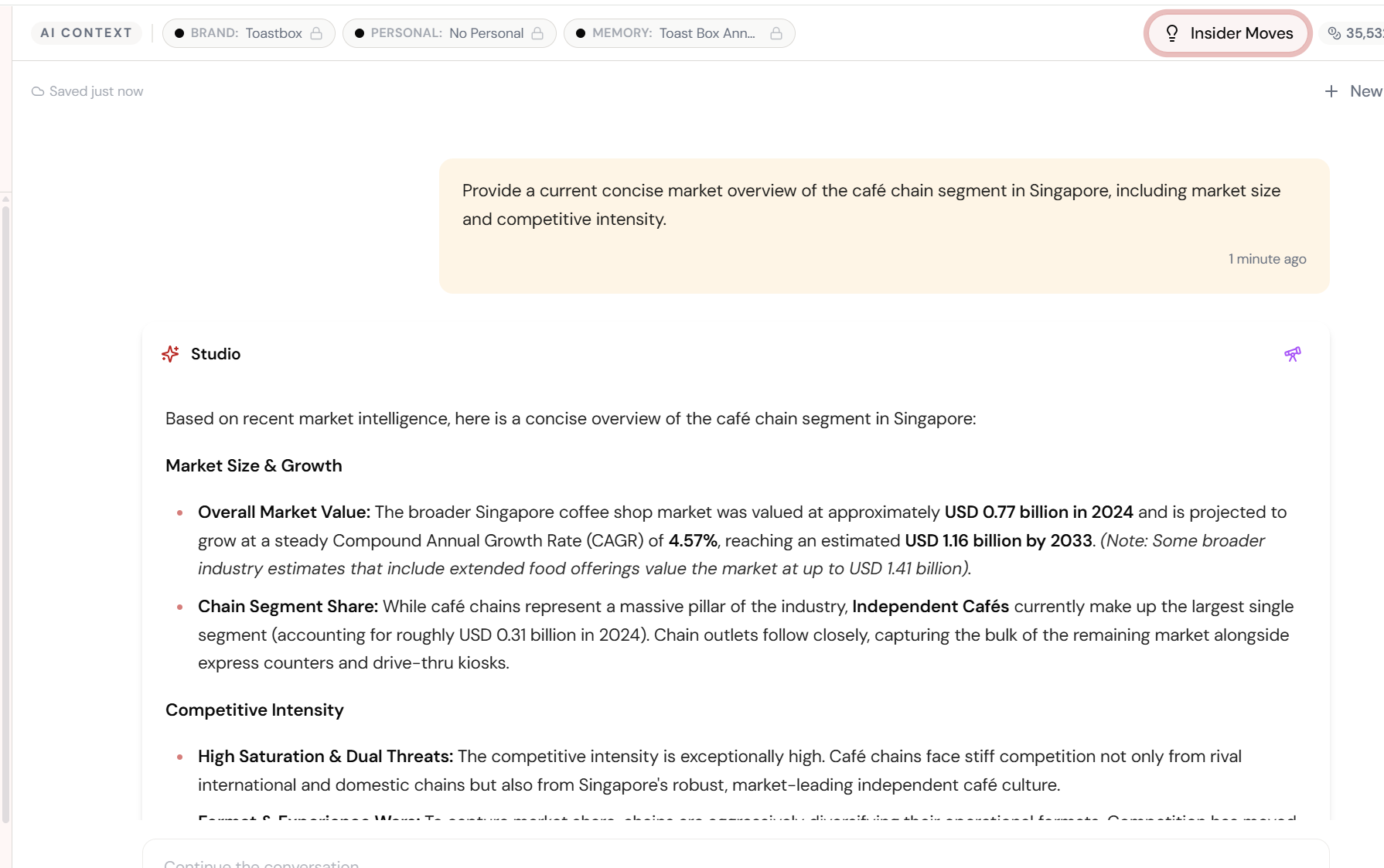
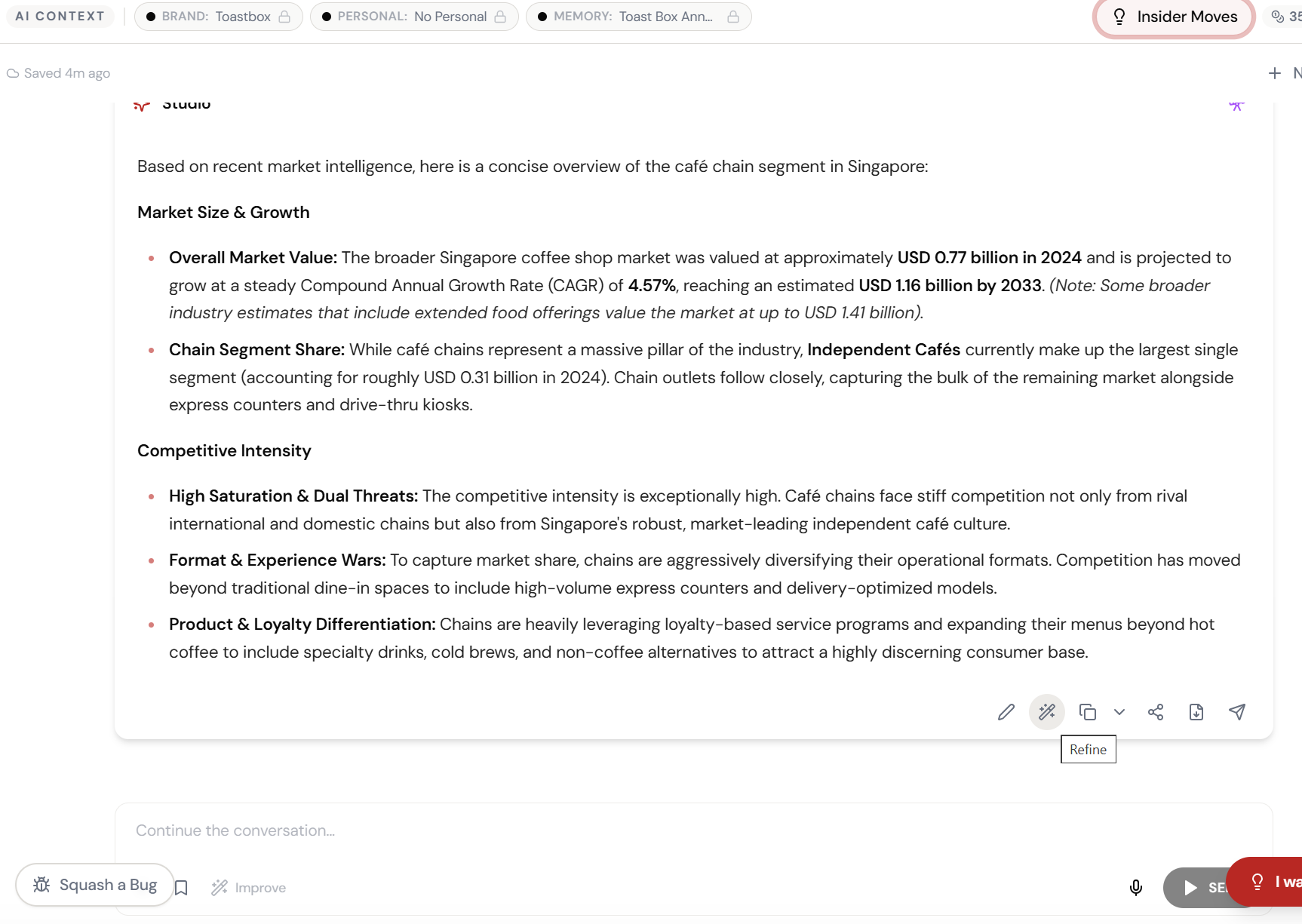
Get Your AI Output
It’s 80% there. Good enough to see the potential. Not good enough to ship.
Read It Through
Good structure. Decent points. But the tone is… off. The flow is clunky.
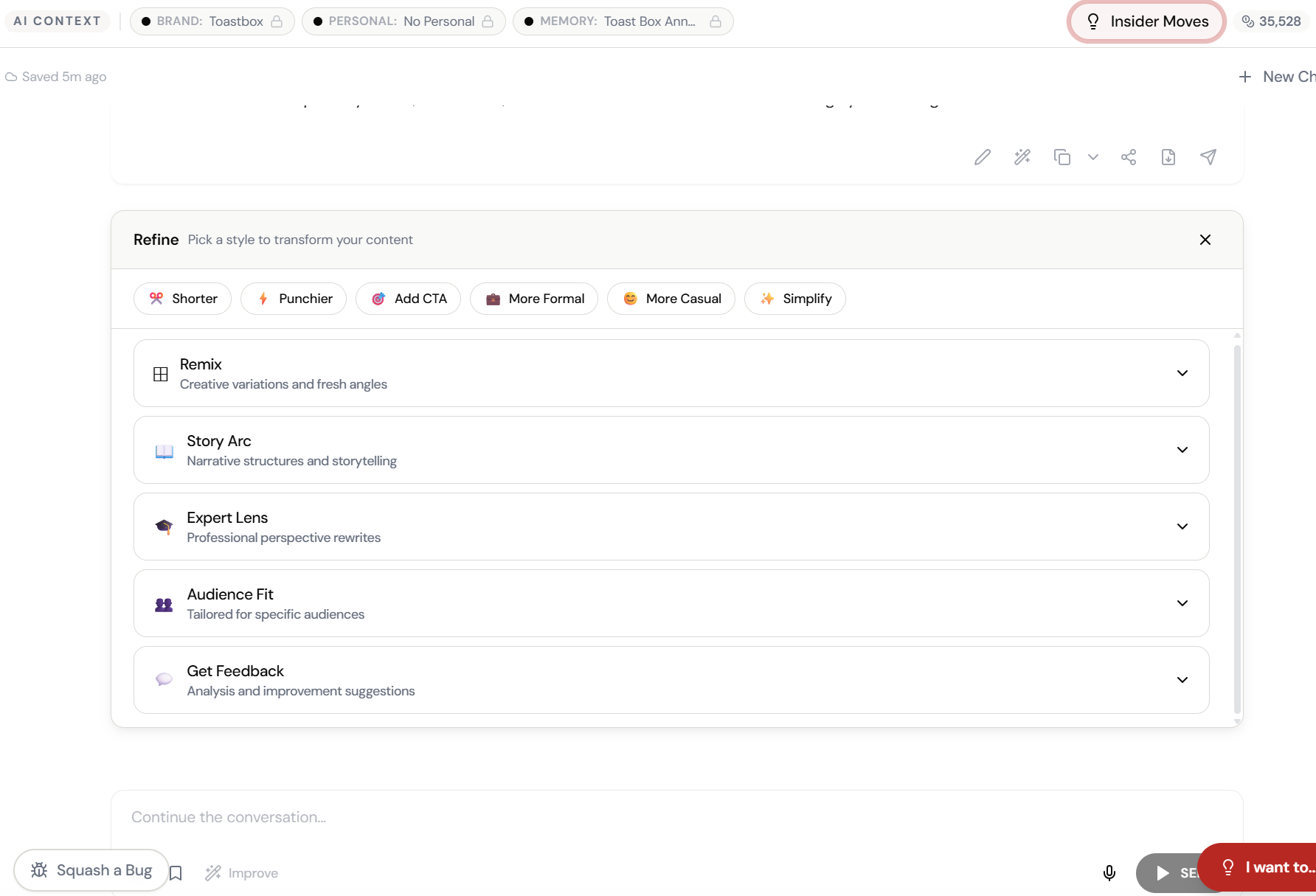
Click Improve
One button. That’s the whole workflow. No re-prompting. No manual editing.
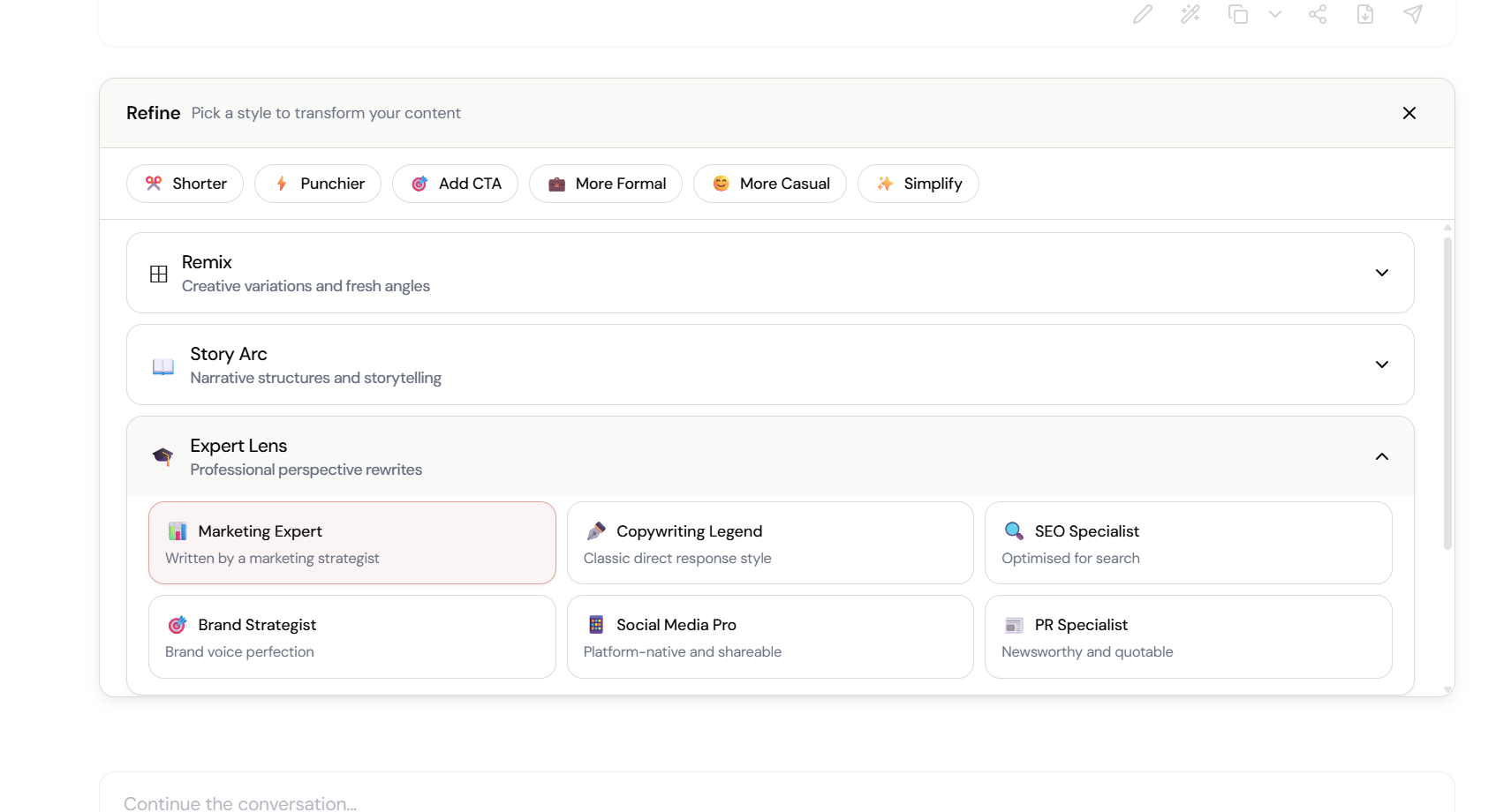
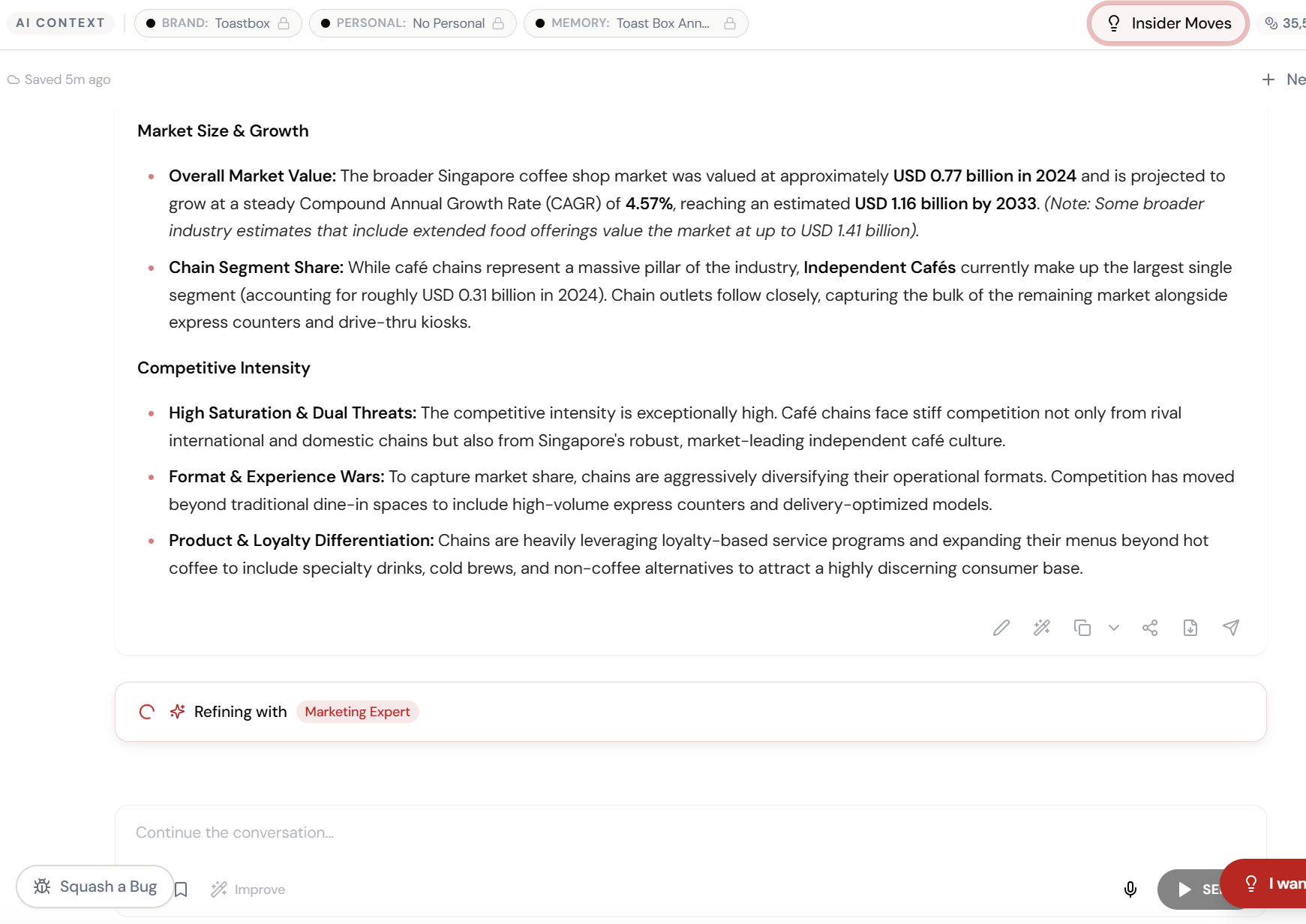
AI Refines It
Tighter copy. Better flow. Sharper structure. Same ideas, better execution.
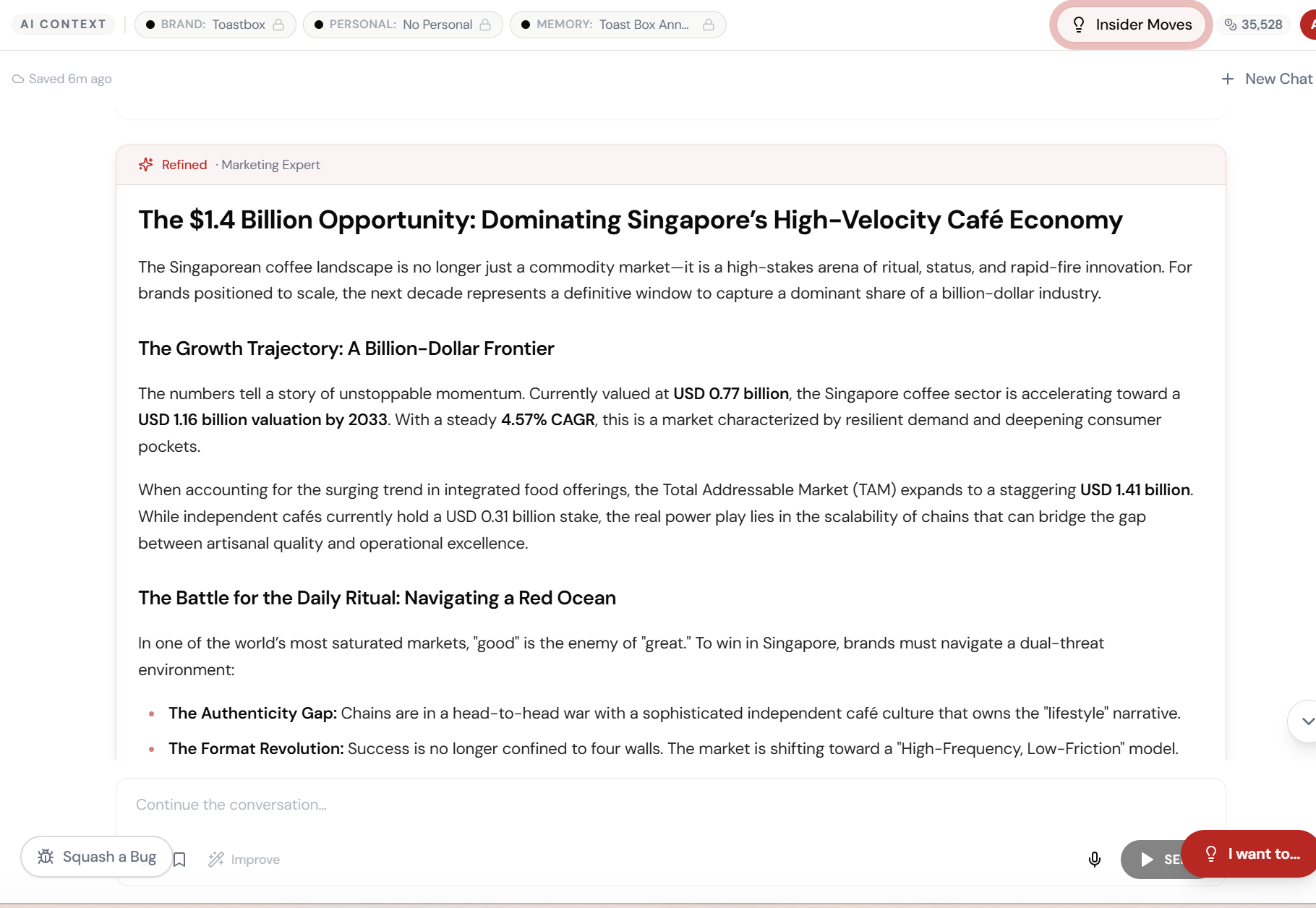
Compare Versions
Same ideas. Completely different impact. The improvement is visible immediately.
Keep Improving
Click again if you want. Each pass gets sharper. Diminishing returns kick in around pass 3.
Final Polish Done
From 80% to 100% — without re-prompting from scratch.
What Actually Changes
The output is 80% there. You re-prompt. Get something 80% different. Re-prompt again. Give up and manually edit. The ‘AI saves time’ claim is looking increasingly ironic.
Click Improve. The same content gets sharper. Click again. Even sharper. The ideas you liked are preserved. The execution improved. Two clicks. Done.
The Improve button turns AI from a first-draft machine into an editorial partner. Same ideas. Better execution. One click.
Why This Is the Most-Used Feature Nobody Talks About
Improve isn’t glamorous. It doesn’t generate images or videos or multi-model comparisons. But it’s the most-used feature across the platform because it solves the most common problem: the output is close but not there.
It works across every capability. Studio outputs. Skill deliverables. Maestro responses. Playbook stages. Anywhere you see an output, you can improve it. One click. Better version. Every time.
Quick Answers
How many times can I click Improve?
As many as you want. Each pass refines further. In practice, most outputs reach their best version in 2-3 passes. You’ll feel the diminishing returns.
Does it change the content or just the writing?
It preserves the ideas and information while improving the writing quality — tighter language, better structure, smoother flow, stronger openings and closings. The substance stays; the craft improves.
Does it work with Brand Vault?
Yes. Improve is Brand Vault-aware. If your Brand Vault is attached, the improvements align with your brand voice and style guidelines.